

Directory Set-Up Instructions
If you are having trouble using the directory, please contact Sarah.
How to Join the Directory
You should have received an email from Church Center. (check your junk folder)
From: no‑reply@churchcenter.com
Subject: Church Directory: approve your information
In this email you have the option to opt in or out of the directory. If you opt in, you can then review your household’s information and choose what to share. If you need it, there are detailed instructions below.
How to Edit Your Directory Info.
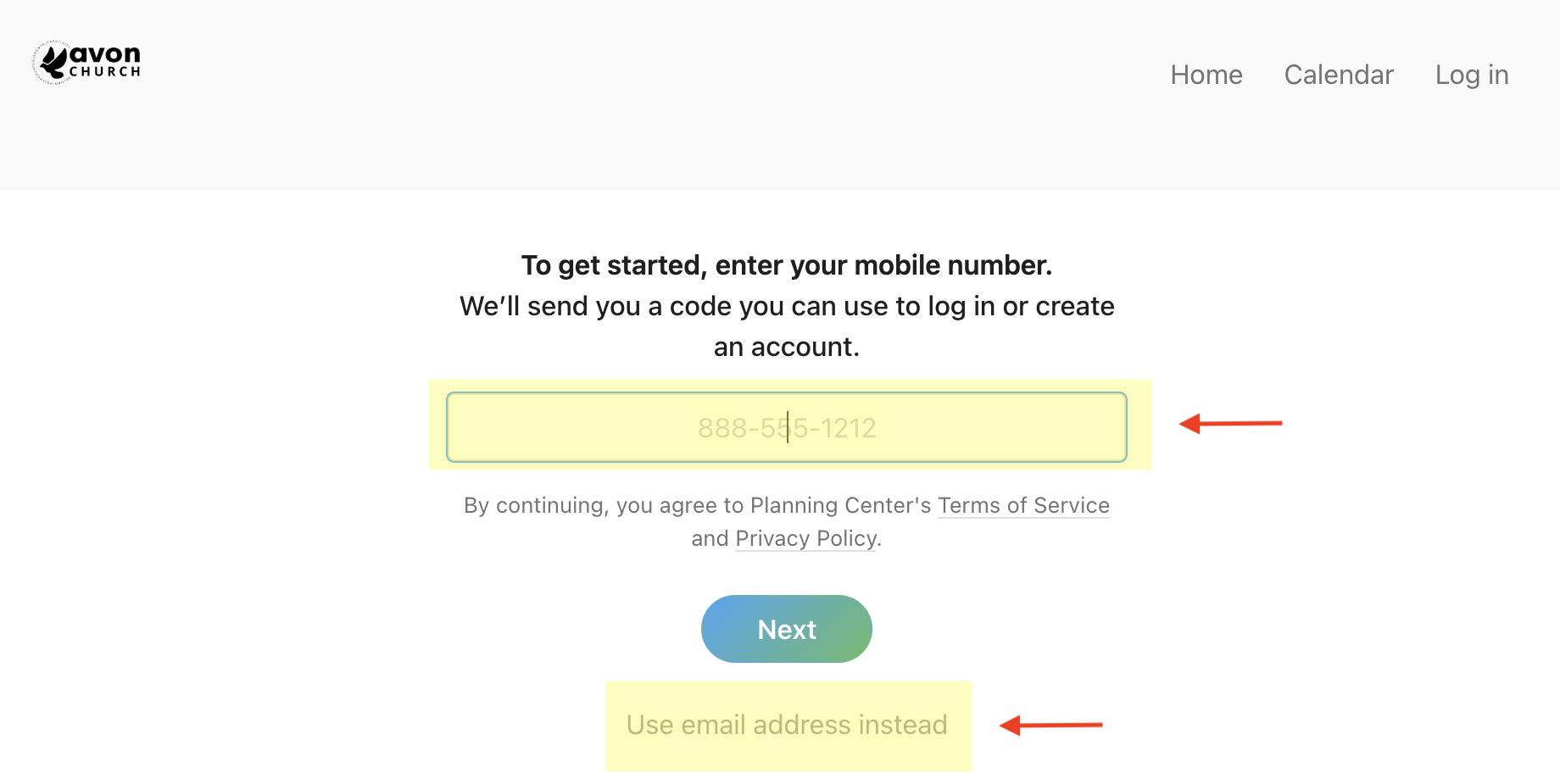
Step 1: Click the link to access the directory, then enter your mobile phone number and click next (or click “use email address instead” and enter your email address).
You will be prompted to enter a code sent to your mobile phone (or email), after entering this code, click “Log in as…”
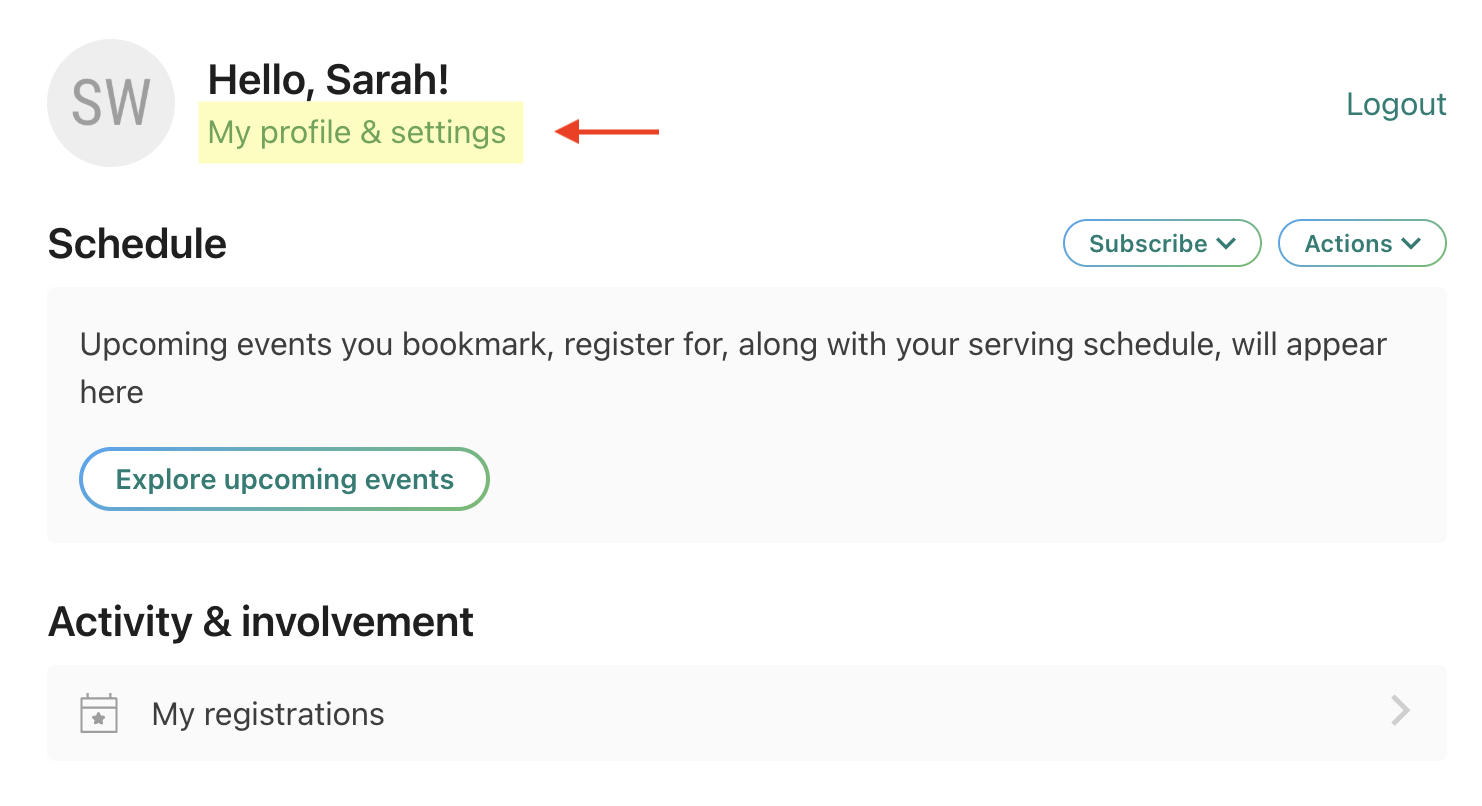
Step 2: The first screen you see will be your home screen. Click on “My profile & settings” to edit your profile and directory settings.
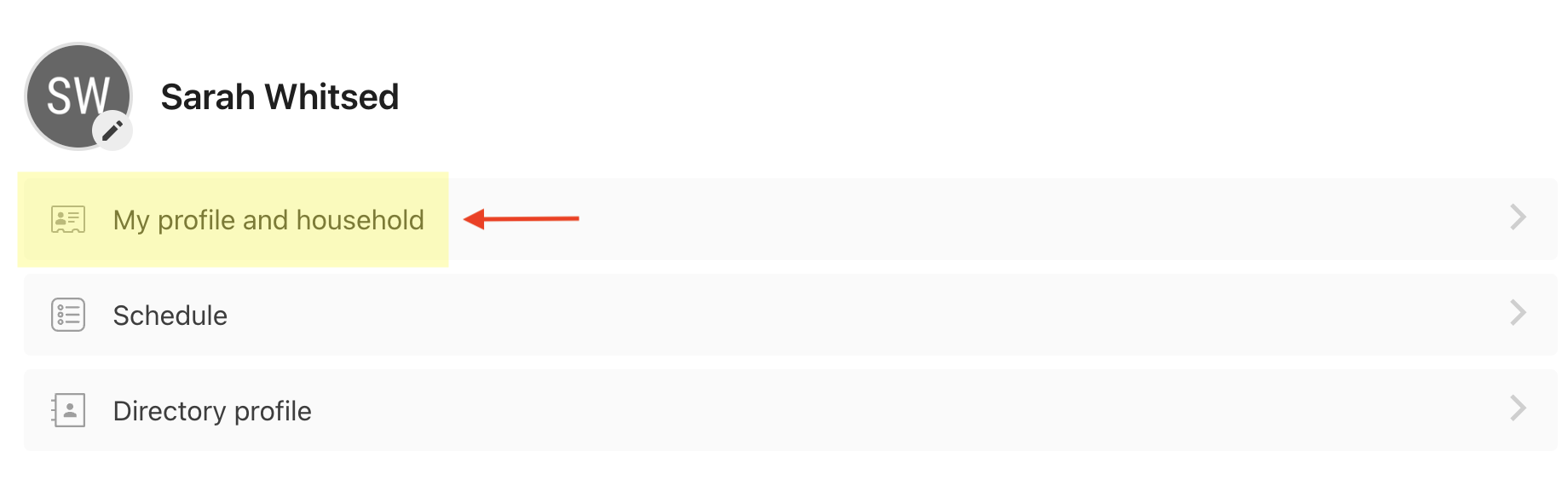
Step 3: To update your profile information (address, phone number, etc.) click on “My profile and household”
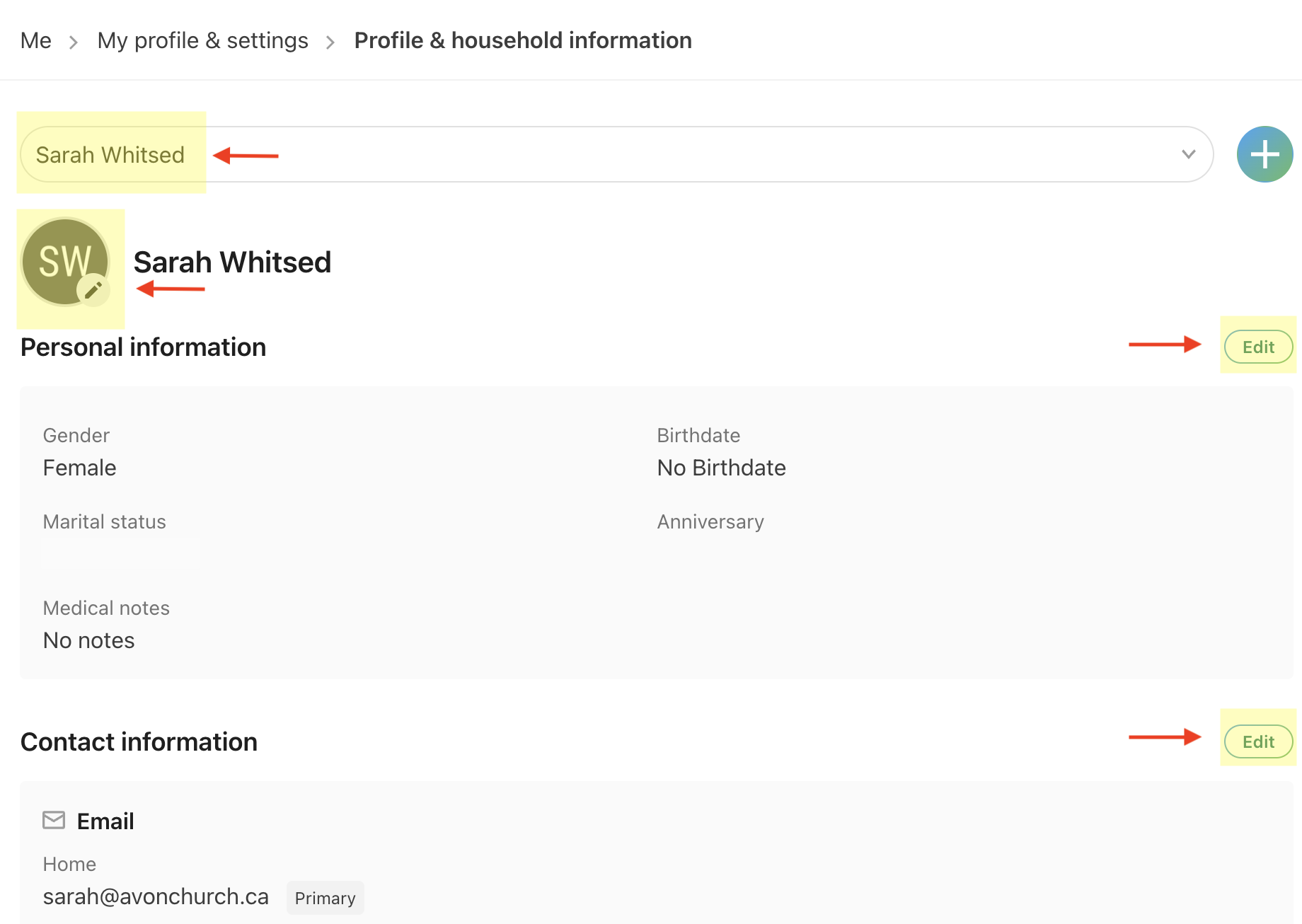
Step 4: To add or edit your information click on the “Edit” buttons. To add a profile picture, click on the circle with your initials. To edit information for other members of your household click on the drop-down menu showing your name near the top of the page.
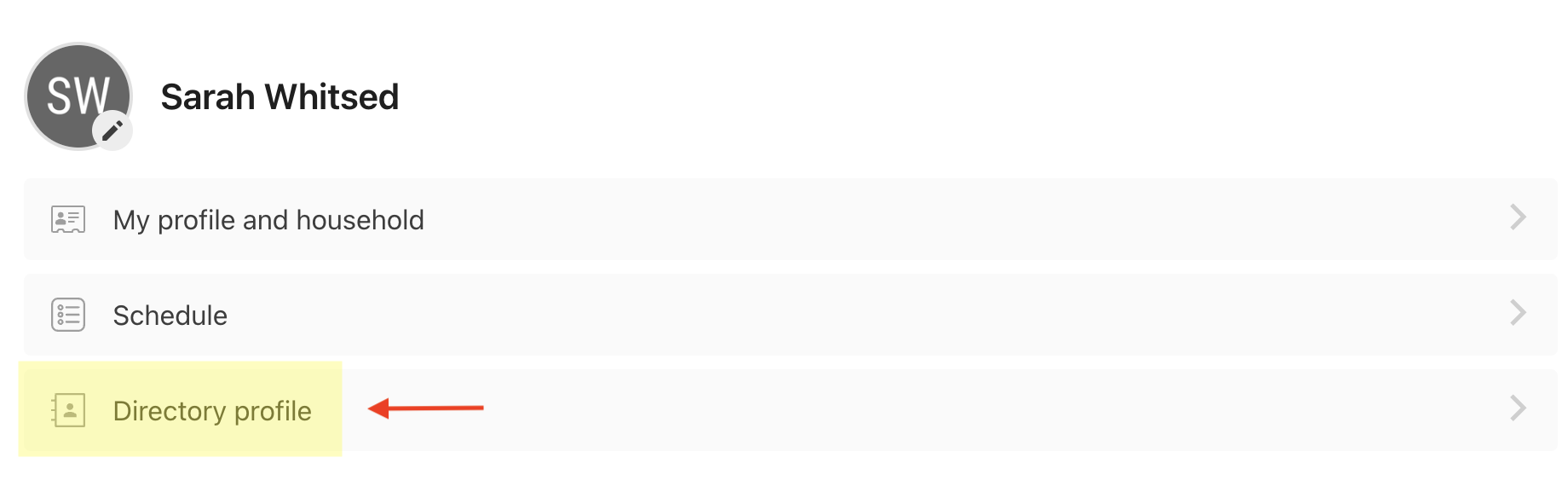
Step 5: To change how your information is displayed in the directory, click “My profile & settings” at the top of the page, then click “Directory profile.”

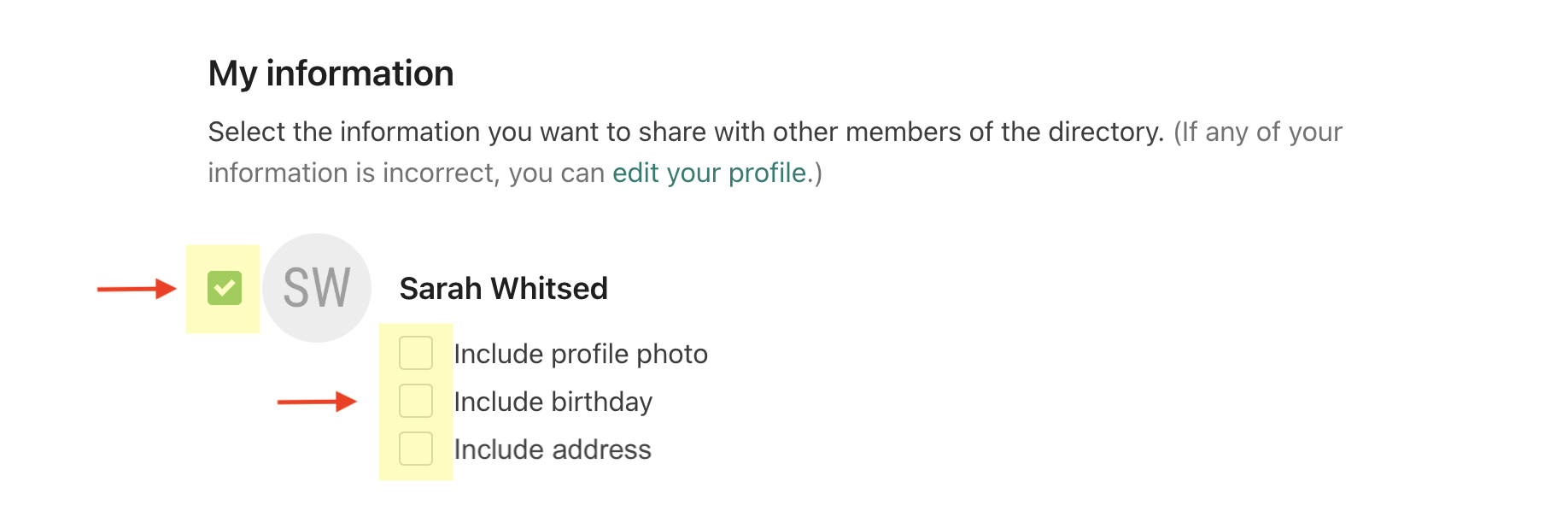
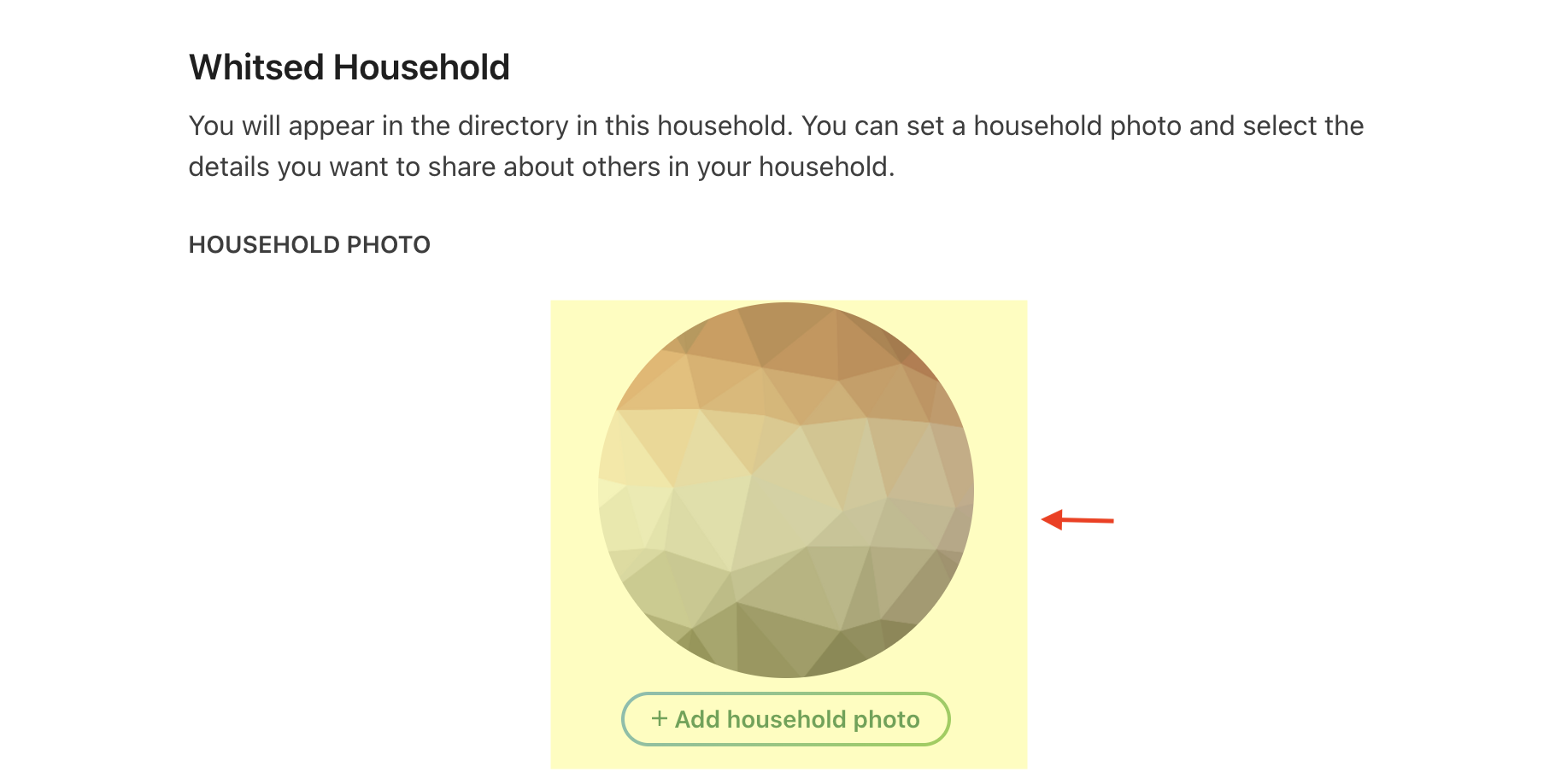
Step 6: To choose which of your family members are included in the directory, click on the check box beside their name. Then click the check box beside the information you would like to share. If you would like to change or include a family photo in the directory, click “Add/delete/edit household photo”
Don’t forget to hit “save” as you make your changes!